Alarms Module
🚨 Enterprise-Grade Alarm Management
The Alarms Module is a critical component of PyAutomation that enables real-time monitoring, detection, and notification of abnormal process conditions. This module implements the ISA-18.2 alarm management standard, providing a robust framework for industrial alarm systems that ensures operators are promptly informed of conditions requiring attention.
🔔 What is an Alarm?
An Alarm in PyAutomation is a configurable monitoring mechanism that continuously evaluates a tag's value against predefined trigger conditions. When a condition is met, the alarm transitions to an active state and notifies operators through the user interface and, if configured, external notification systems.
Alarms serve multiple critical functions in industrial automation:
- Safety: Detect dangerous conditions that could lead to equipment damage or safety hazards
- Process Quality: Monitor process variables to ensure product quality and operational efficiency
- Equipment Protection: Prevent equipment damage by detecting abnormal operating conditions
- Compliance: Maintain records of abnormal conditions for regulatory and audit purposes
- Operator Guidance: Provide context and recommended actions when alarm conditions occur
Module Overview
The Alarms Module provides a comprehensive interface for managing the entire alarm lifecycle, from creation and configuration to monitoring, acknowledgment, and historical review.
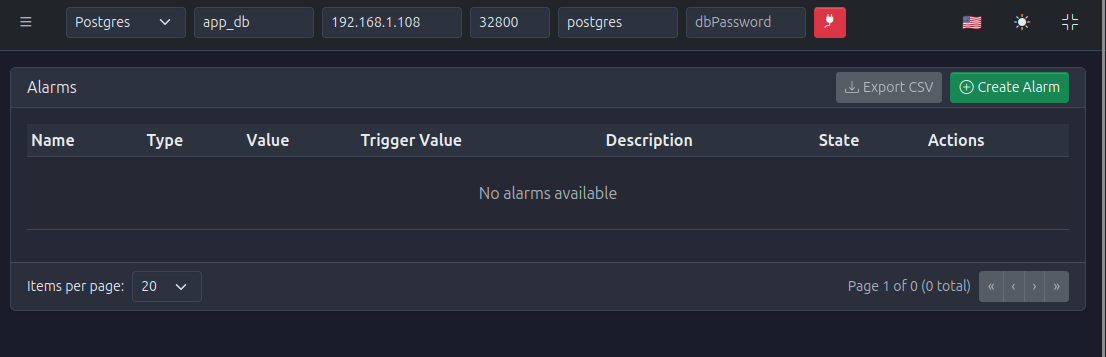
When you first access the Alarms Module, you'll see an empty dashboard indicating no alarms have been configured yet. This is your starting point for building your alarm system.
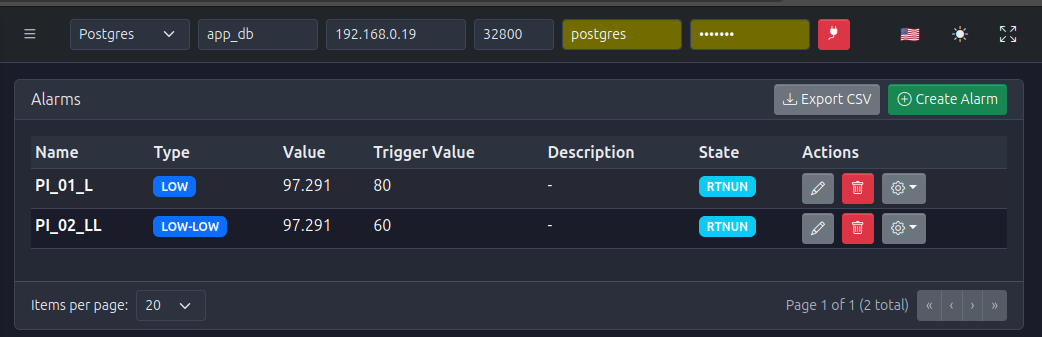
Once alarms are created and active, the dashboard displays them in a comprehensive table showing current states, trigger values, and management actions.
📋 Alarm Types
Comprehensive Alarm Type Support
PyAutomation supports several alarm types to accommodate different monitoring requirements
BOOL (Boolean)
Triggers based on the boolean state of a tag.
- Use Case: Digital inputs, equipment status, interlock conditions
- Trigger Behavior: Activates when the tag value is
True(orFalse, depending on configuration) - Example: A pump running status tag triggers an alarm when the pump is unexpectedly off
HIGH
Triggers when an analog tag's value exceeds a defined threshold.
- Use Case: Maximum temperature, maximum pressure, high flow rates
- Trigger Behavior: Activates when tag value > trigger value
- Example: A temperature alarm triggers when tank temperature exceeds 100°C
LOW
Triggers when an analog tag's value falls below a defined threshold.
- Use Case: Minimum level, low pressure, insufficient flow
- Trigger Behavior: Activates when tag value < trigger value
- Example: A pressure alarm triggers when pipeline pressure drops below 50 psi
HIGH-HIGH (HH)
A critical tier alarm that triggers at an even higher threshold than a HIGH alarm.
- Use Case: Critical safety conditions requiring immediate attention
- Trigger Behavior: Activates when tag value > trigger value (typically higher than HIGH alarm threshold)
- Example: A critical temperature alarm triggers at 150°C when normal HIGH alarm triggers at 100°C
LOW-LOW (LL)
A critical tier alarm that triggers at an even lower threshold than a LOW alarm.
- Use Case: Critical safety conditions requiring immediate attention
- Trigger Behavior: Activates when tag value < trigger value (typically lower than LOW alarm threshold)
- Example: A critical level alarm triggers at 10% when normal LOW alarm triggers at 30%
Alarm States (ISA-18.2)
PyAutomation implements the standard ISA-18.2 alarm state machine, which defines the lifecycle of an alarm from normal operation through activation, acknowledgment, and return to normal.
Normal
The process condition is normal, and the alarm is not active.
- Process Condition: Normal
- Alarm Status: Not Active
- Annunciation: Not Annunciated
Unacknowledged
The alarm condition is active and annunciating, waiting for operator acknowledgment.
- Process Condition: Abnormal
- Alarm Status: Active
- Annunciation: Annunciated
- Action Required: Operator must acknowledge the alarm
Acknowledged
The alarm condition is active, but the operator has acknowledged it.
- Process Condition: Abnormal
- Alarm Status: Active
- Annunciation: Annunciated (may be silenced after acknowledgment)
- Note: The condition still exists; acknowledgment only confirms operator awareness
RTN Unacknowledged (Return to Normal Unacknowledged)
The process condition has returned to normal, but the alarm return to normal has not been acknowledged.
- Process Condition: Normal
- Alarm Status: Not Active
- Annunciation: Annunciated (alarm return notification)
- Action Required: Operator should acknowledge the return to normal
Shelved
The alarm has been temporarily disabled by the operator without changing its configuration.
- Process Condition: Varies (can be normal or abnormal)
- Alarm Status: Suppressed
- Annunciation: Suppressed
- Use Case: Temporarily disable alarms during maintenance or known process upsets
Suppressed By Design
The alarm is intentionally suppressed as part of the system design.
- Process Condition: Varies
- Alarm Status: Suppressed
- Annunciation: Suppressed
- Use Case: Alarms that are only active during specific operating modes
Out Of Service
The alarm is disabled because the associated equipment or process is out of service.
- Process Condition: N/A
- Alarm Status: Out of Service
- Annunciation: Suppressed
- Use Case: Equipment maintenance, process shutdown, sensor calibration
Alarms Dashboard Interface
The Alarms Dashboard provides a comprehensive view of all configured alarms and their current states.
Table Columns
- Name: The unique identifier of the alarm (e.g.,
PI_02_L,Boiler_High_Temp) - Type: The alarm type (BOOL, HIGH, LOW, HH, LL)
- Value: The current value of the monitored tag
- Trigger Value: The threshold or condition that activates the alarm
- Description: Additional context or instructions about the alarm
- State: Current alarm state (Normal, Unacknowledged, Acknowledged, etc.)
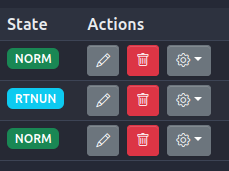
- Actions: Edit (pencil icon) and Delete (trash icon) buttons for each alarm
Dashboard Actions
- Create Alarm (Green button with plus icon): Opens the alarm creation dialog
- Export CSV: Exports the current alarm list to a CSV file for reporting or documentation
- Pagination Controls: Navigate through multiple pages when many alarms are configured
Creating an Alarm
To create a new alarm, follow these steps:
1. Open the Create Alarm Dialog
- Navigate to the Alarms module from the main menu
- Click the Create Alarm button (green button with plus icon) in the top-right corner of the Alarms Dashboard
- The "Create New Alarm" dialog will open
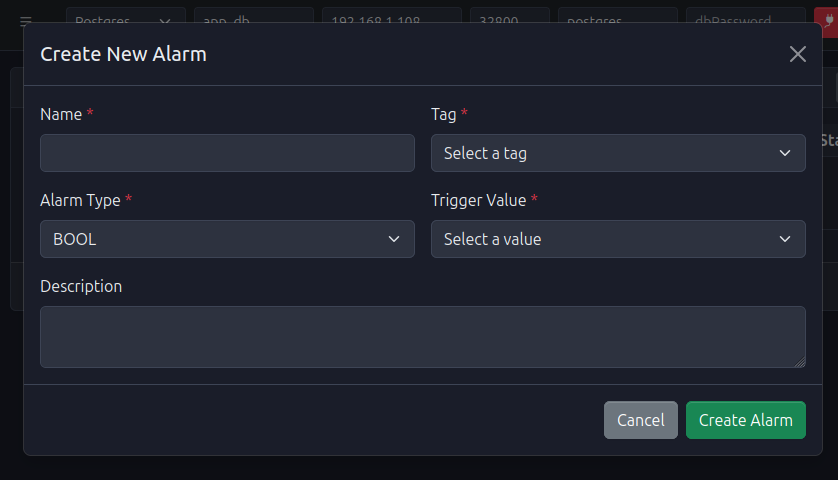
2. Configure Alarm Properties
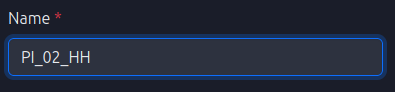
Name (Required)
Assign a unique and descriptive name to the alarm.
- Requirement: Must be unique across all alarms in the system
- Best Practice: Use descriptive names that indicate the monitored variable and condition (e.g.,
Tank_01_High_Temp,Pump_02_Low_Pressure) - Example:
Boiler_High_Temp_Alarm,PI_02_L(Pressure Indicator 02 Low)
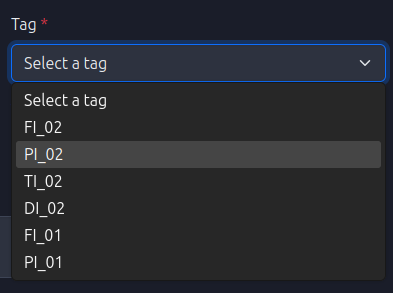
Tag Selection (Required)
Select the tag that the alarm will monitor.
- Requirement: The tag must already exist in the Tags Module
- Behavior: The alarm continuously evaluates this tag's value against the trigger condition
- Tip: Use the dropdown to search and select from available tags
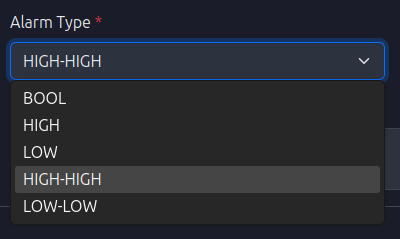
Alarm Type (Required)
Select the type of alarm logic that determines when the alarm triggers.
- Options: BOOL, HIGH, LOW, HH (HIGH-HIGH), LL (LOW-LOW)
- Selection: Choose based on the nature of the condition you want to detect
- Note: For boolean tags, only BOOL type is applicable
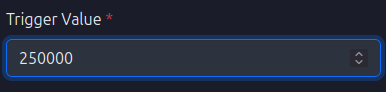
Trigger Value (Required)
Define the threshold or condition that activates the alarm.
- For BOOL alarms: Select
TrueorFalsefrom the dropdown - For HIGH/LOW/HH/LL alarms: Enter a numeric value that matches the tag's engineering unit
- Important: The trigger value uses the tag's base unit; ensure you're using the correct scale
- Example: For a HIGH temperature alarm on a tag with units °C, enter
100.0to trigger at 100°C
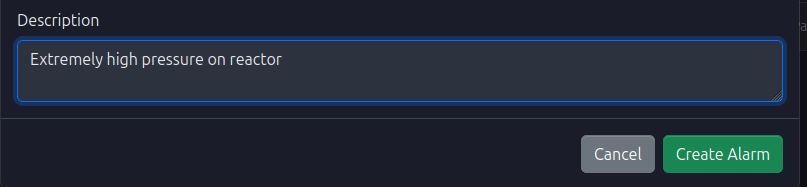
Description (Optional)
Provide additional context, potential causes, or recommended operator actions.
- Usage: Document what the alarm means and what operators should do when it triggers
- Example: "High tank temperature. Check cooling water flow and verify heat exchanger operation."

3. Finalize and Create
- Review all configured fields to ensure accuracy
- Verify the trigger value is appropriate for the tag's units and operating range
- Click the Create Alarm button (green button) to save and activate the alarm
- The alarm will immediately appear in the Alarms Dashboard
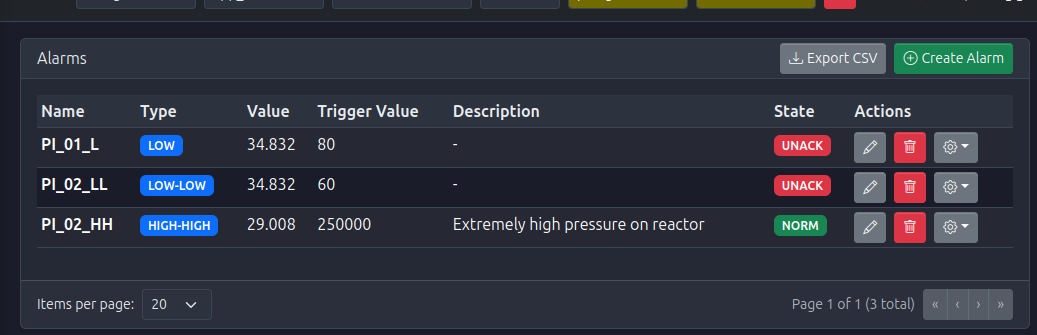
The newly created alarm will be in the Normal state and will begin monitoring the tag value. When the trigger condition is met, it will automatically transition to Unacknowledged state.
Managing Alarms
Viewing Alarm States
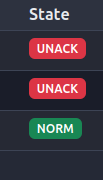
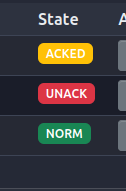
The Alarms Dashboard displays the current state of each alarm using standard ISA-18.2 state indicators:
- Normal: Green or neutral indicator
- Unacknowledged: Red indicator (requires acknowledgment)
- Acknowledged: Yellow or amber indicator (condition still active)
- RTN Unacknowledged: Blue or cyan indicator (return to normal)
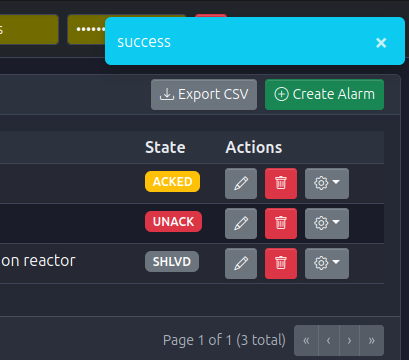
- Shelved: Gray indicator (temporarily suppressed)
Editing Alarms
To modify an existing alarm:
- Locate the alarm in the Alarms Dashboard
- Click the Edit icon (pencil) in the Actions column
- The "Edit Alarm" dialog will open with current values pre-populated
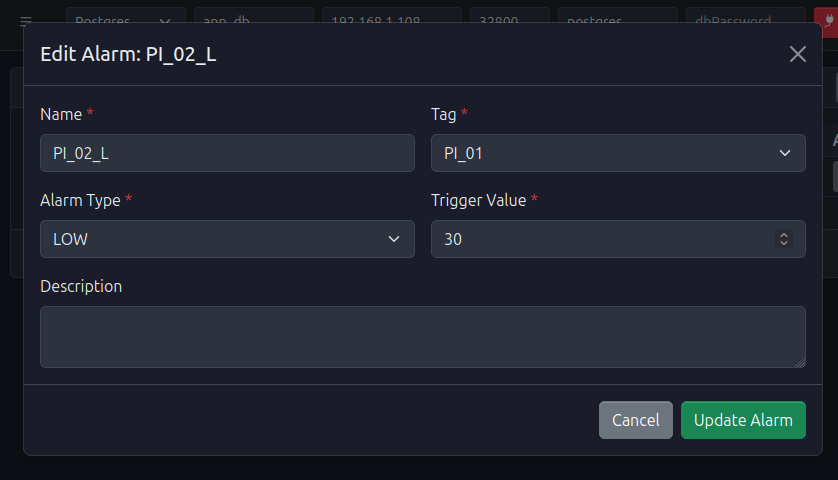
- Modify the desired fields (Name, Tag, Alarm Type, Trigger Value, Description)

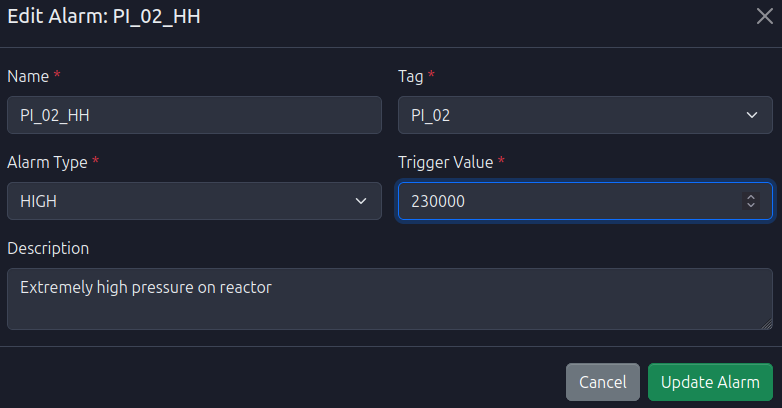
- Click Update Alarm to save changes
- Changes take effect immediately
Important Notes: * Changing the trigger value will not affect the alarm's current state; it only changes when future triggers occur * Changing the tag will reset the alarm state to Normal * Alarm names must remain unique after editing
Deleting Alarms
To remove an alarm from the system:
- Locate the alarm in the Alarms Dashboard
- Click the Delete icon (trash) in the Actions column
- Confirm the deletion in the confirmation dialog
- The alarm will be removed from active monitoring
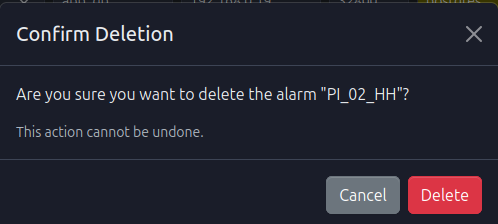
Note: Deleting an alarm removes its configuration, but historical alarm records remain in the database for reporting purposes.
Alarm Actions and State Transitions
Operators can perform various actions on alarms depending on their current state:
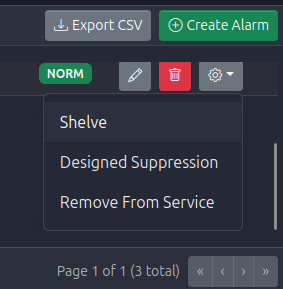
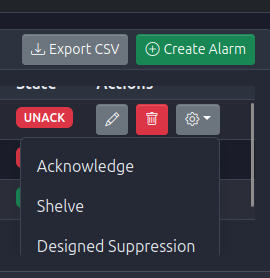
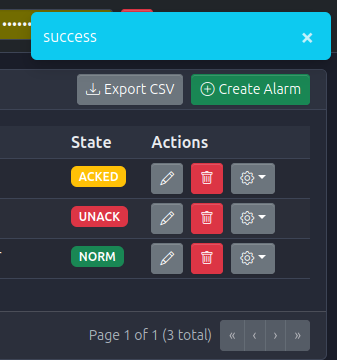
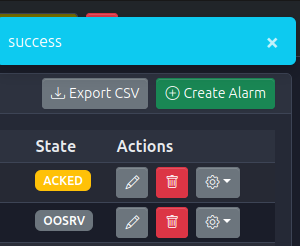
- Acknowledge: Transitions Unacknowledged → Acknowledged
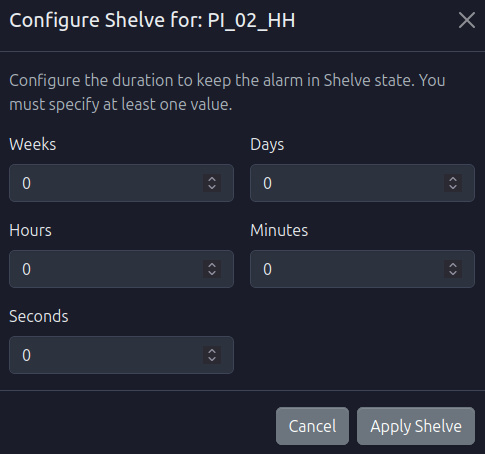
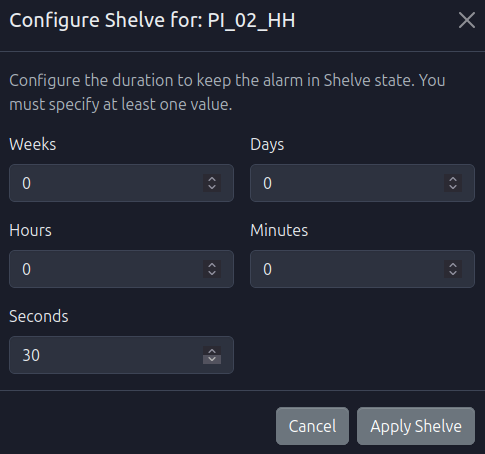
- Shelve: Temporarily suppress the alarm (available from multiple states)
- Unsuppress: Remove suppression (for Shelved or Suppressed By Design alarms)
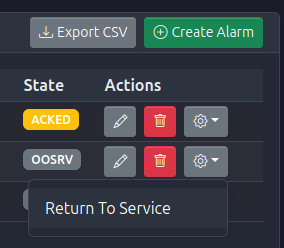
- Return to Service: Reactivate Out Of Service alarms
These actions are typically performed from alarm detail views or alarm summary interfaces.
Alarm History
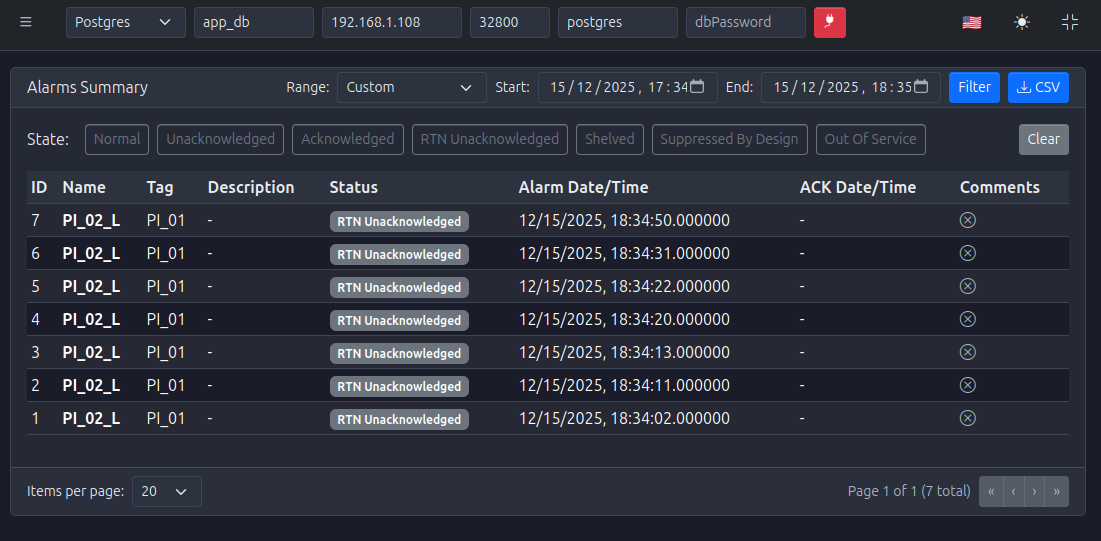
The Alarm History page provides comprehensive historical records of all alarm activations, state changes, acknowledgments, and related events.
Features
- Date Range Filtering: Filter alarms by custom date ranges
- State Filtering: Filter by alarm state (Normal, Unacknowledged, Acknowledged, etc.)
- Comprehensive Data: View alarm ID, name, tag, description, status, alarm time, acknowledgment time
- Export: Export alarm history to CSV for analysis and reporting
- Pagination: Navigate through large historical datasets
Use Cases
- Incident Analysis: Review alarm sequences leading up to process upsets
- Performance Monitoring: Analyze alarm frequency and operator response times
- Compliance Reporting: Generate reports for regulatory requirements
- Trend Analysis: Identify recurring alarm patterns or nuisance alarms
Exporting Alarms
You can export the current alarm list to a CSV file for:
- Documentation and specification sheets
- Backup purposes
- Import into other systems
- External analysis and reporting
- Compliance documentation
To export:
- Click the Export CSV button in the Alarms Dashboard
- The CSV file will be generated with all current alarm configurations
- Download and save the file for your records

Best Practices
Alarm Naming
- Use consistent naming conventions across your facility
- Include the monitored variable and condition (e.g.,
Tank_01_High_Temp,Line_02_Low_Pressure) - Avoid special characters that may cause issues in external systems
- Keep names concise but descriptive
Trigger Value Selection
- Set thresholds based on actual process limits and safety requirements
- Consider the tag's engineering units when setting trigger values
- Avoid setting thresholds too close to normal operating values to prevent nuisance alarms
- Use HIGH-HIGH and LOW-LOW for critical safety conditions
- For boolean alarms, clearly document what condition triggers the alarm
Alarm Prioritization
- Use HIGH-HIGH and LOW-LOW types for critical safety alarms
- Reserve HIGH and LOW for operational alarms
- Document alarm priorities in descriptions for operator guidance
Description Best Practices
- Always provide clear descriptions explaining what the alarm means
- Include recommended operator actions when the alarm triggers
- Document potential causes of the alarm condition
- Reference related procedures or documentation
Alarm Management
- Regularly review and acknowledge alarms in a timely manner
- Use shelving appropriately during maintenance or known process conditions
- Avoid creating duplicate alarms for the same condition
- Review alarm history regularly to identify and address nuisance alarms
- Keep alarm configurations synchronized with process changes
Integration with Tags
- Ensure tags are properly configured and receiving data before creating alarms
- Verify tag data types match alarm type requirements (boolean tags for BOOL alarms, numeric tags for HIGH/LOW alarms)
- Consider tag scan times when setting up alarms; faster scan times provide more responsive alarm detection
Common Use Cases
Process Safety Monitoring
Monitor critical process variables to detect unsafe conditions and protect equipment and personnel.
Example: Create HIGH-HIGH temperature alarms on reactor vessels to detect dangerous overheating conditions.
Quality Control
Monitor process variables to ensure product quality and operational efficiency.
Example: Create HIGH and LOW pressure alarms to ensure product is within specification ranges.
Equipment Protection
Detect abnormal operating conditions that could lead to equipment damage.
Example: Create LOW pressure alarms on lubrication systems to detect insufficient oil pressure.
Operational Guidance
Provide operators with clear notifications of conditions requiring attention.
Example: Create boolean alarms on equipment status to notify operators when equipment unexpectedly stops.
Troubleshooting
Alarm Not Triggering
If an alarm is not triggering when expected:
- Verify the tag is receiving data and updating values
- Check that the trigger value is appropriate for the tag's units and data type
- Confirm the alarm type matches the tag's data type (boolean tags require BOOL alarm type)
- Verify the alarm state is not Shelved, Suppressed By Design, or Out Of Service
- Check the tag's scan time to ensure values are updating frequently enough
Alarm Triggering Unexpectedly
If an alarm triggers when it shouldn't:
- Review the trigger value and verify it's set correctly
- Check the tag's engineering units to ensure you're using the correct scale
- Verify the alarm type is appropriate for the condition
- Review tag values to understand what's causing the trigger
Alarm State Issues
If alarm states are not transitioning correctly:
- Verify the alarm is not in a suppressed state (Shelved, Suppressed By Design, Out Of Service)
- Check that tag values are updating properly
- Review alarm history to understand state transition patterns
Navigation to Related Modules
Alarms integrate with other PyAutomation modules:
- Tags: Alarms monitor tag values; ensure tags are properly configured before creating alarms
- Database: Alarm states and history are logged to the database for historical analysis
- Events: Alarm state changes generate events that are logged in the Events Module
- Operational Logs: Alarm acknowledgments and state changes are recorded in operational logs
🚀 Getting Started
Ready to Set Up Your Alarm System?
To begin working with alarms:
-
Ensure Prerequisites:
- Tags are created and receiving data (see Tags Module)
- Database connection is configured for alarm history logging (see Database Configuration)
-
Access the Alarms Module:
- Navigate to Alarms from the main menu
-
Create Your First Alarm:
- Click the Create Alarm button
- Select a tag to monitor
- Choose an appropriate alarm type
- Set the trigger value
- Provide a descriptive name and description
- Click Create Alarm
-
Monitor Alarm States:
- Observe alarm states in the Alarms Dashboard
- Acknowledge alarms as they trigger
- Review alarm history to understand patterns
-
Optimize Your Alarm System:
- Review alarm frequency and adjust trigger values to reduce nuisance alarms
- Ensure all alarms have clear descriptions and recommended actions
- Regularly review alarm history for continuous improvement