Machines Module
🤖 State Machine Management
The Machines Module provides a comprehensive interface for monitoring and managing state machines (engines) running in the PyAutomation system. State machines are the core execution units that handle control logic, data acquisition, alarm processing, and other automation tasks.
What are State Machines?
State Machines (also called Engines) are software components that execute control logic in a structured, state-based manner. Each state machine has:
- States: Different operational modes (Starting, Waiting, Running, Resetting, etc.)
- Transitions: Rules that govern movement between states
- Execution Interval: How frequently the machine executes its logic
- Lifecycle: A defined sequence from initialization through operation to reset
Key Features
- Real-Time Monitoring: View current state and status of all machines
- State Transitions: Manually trigger state transitions when allowed
- Interval Configuration: Adjust execution intervals for performance tuning
- Comprehensive Information: View machine names, descriptions, classifications, and execution details
- Pagination: Navigate through systems with many machines
Module Overview
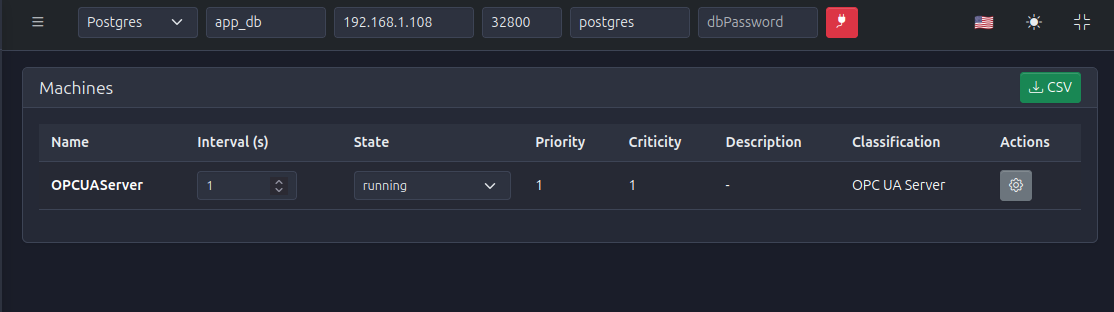
The Machines Module displays all active state machines in a table format, showing:
- Machine identification (name, description, classification)
- Current state and status
- Execution interval
- Available actions based on current state
Understanding State Machine States
PyAutomation state machines follow a standard lifecycle with these states:
Starting
- Purpose: Initialization phase
- Duration: Typically brief
- Actions: Machine sets up resources, initializes variables, connects to external systems
- Next State: Automatically transitions to Waiting
Waiting
- Purpose: Waiting for conditions to be met
- Duration: Until buffers are filled or conditions are ready
- Actions: Machine waits for input data or external conditions
- Next State: Transitions to Running when ready
Running
- Purpose: Main execution phase
- Duration: Continuous until reset or error
- Actions: Machine executes its primary logic, processes data, evaluates conditions
- Next State: Can transition to Resetting, Restarting, or remain in Running
Resetting
- Purpose: Reset and cleanup phase
- Duration: Brief
- Actions: Machine resets variables, cleans up resources
- Next State: Returns to Starting
Restarting
- Purpose: Restart cycle without full reset
- Duration: Brief
- Actions: Machine restarts its cycle
- Next State: Returns to Waiting
Accessing the Machines Module
- Navigate to Machines from the main menu
- The dashboard displays all active state machines in a paginated table
- Each row shows machine details and available actions
Viewing Machine Information
Table Columns
- Name: The unique identifier of the state machine
- Description: Human-readable description of the machine's purpose
- Classification: Category of the machine (e.g., "OPC UA Server", "DAQ", "Filter")
- Current State: The machine's current operational state
- Interval: Execution interval in seconds (how often the machine runs)
- Actions: Dropdown menu with available actions (State Transition, Update Interval)
Understanding Execution Intervals
The execution interval determines how frequently a state machine executes its logic:
Interval Values
-
Fast Intervals (0.1 - 1.0 seconds):
- High-frequency data acquisition
- Real-time control loops
- Rapid response requirements
-
Medium Intervals (1.0 - 10.0 seconds):
- Standard process monitoring
- Typical control applications
- Balanced performance
-
Slow Intervals (10.0+ seconds):
- Periodic tasks
- Background processing
- Resource-intensive operations
Impact of Interval Changes
- Performance: Faster intervals use more CPU resources
- Responsiveness: Faster intervals provide more responsive control
- System Load: Too many fast machines can overload the system
- Balance: Choose intervals that match the process requirements
Configuring Execution Intervals
Changing a Machine's Interval
To modify the execution interval of a state machine:
- Locate the machine in the table
- Click the Actions dropdown in the machine's row
- Select Update Interval or similar option
- A dialog opens showing:
- Machine name
- Current interval
- Input field for new interval
- Enter the new interval value (in seconds)
- Click Confirm to apply the change
- A confirmation dialog may appear showing:
- Machine name
- Old interval
- New interval
- Confirm the change
- The machine's interval is updated immediately
State Transitions
Some state machines allow manual state transitions for operational control:
Available Transitions
Common transitions include:
- Reset: Transition from Running/Error states back to Starting
- Start: Begin machine execution
- Stop: Halt machine execution
Note: Available transitions depend on the machine's current state and design.
Performing a State Transition
To manually trigger a state transition:
- Locate the machine in the table
- Click the Actions dropdown
- Select the desired transition (e.g., "Reset", "Start")
- A confirmation dialog appears showing:
- Machine name
- Current state
- Target state
- Click Confirm to execute the transition
- The machine transitions to the new state
Common State Machines
PyAutomation includes several built-in state machines:
OPCUAServer
- Purpose: Manages the embedded OPC UA Server
- Classification: OPC UA Server
- Typical Interval: 1.0 second
- States: Starting → Waiting → Running
DAQ (Data Acquisition)
- Purpose: Acquires data from OPC UA clients and updates CVT tags
- Classification: DAQ
- Typical Interval: Varies based on scan times (e.g., 0.1 - 1.0 seconds)
- States: Starting → Waiting → Running
Filter
- Purpose: Applies filtering algorithms to tag data
- Classification: Filter
- Typical Interval: 1.0 - 5.0 seconds
- States: Starting → Waiting → Running
Pagination
When many machines are running, the table uses pagination:
- Items Per Page: 10 machines per page (default)
- Navigation: Use Previous/Next buttons or page numbers
- Current Page Indicator: Shows current page and total pages
Real-Time Updates
Machine states and information update in real-time:
- State Changes: When machines transition states, the table updates automatically
- Status Updates: Current status reflects the machine's operational condition
- Interval Changes: Updated intervals are reflected immediately
Best Practices
Interval Configuration
- Match Requirements: Set intervals that match your process needs
- Avoid Over-Configuration: Don't set intervals faster than necessary
- Monitor Performance: Watch system performance when adjusting intervals
- Document Changes: Keep records of interval changes for troubleshooting
State Management
- Understand Transitions: Know which transitions are safe for each machine
- Avoid Unnecessary Resets: Only reset machines when necessary
- Monitor State Changes: Watch for unexpected state transitions
- Review Regularly: Periodically review machine states for anomalies
System Performance
- Balance Intervals: Distribute execution intervals to avoid CPU spikes
- Monitor Load: Watch overall system performance
- Optimize Critical Machines: Prioritize intervals for critical processes
- Document Configuration: Maintain documentation of machine configurations
Troubleshooting
Machine Stuck in Starting State
If a machine remains in Starting state:
- Check Logs: Review system logs for initialization errors
- Verify Resources: Ensure required resources are available
- Check Dependencies: Verify all dependencies are met
- Review Configuration: Check machine configuration for errors
Machine Not Executing
If a machine isn't executing:
- Verify State: Ensure machine is in Running state
- Check Interval: Verify interval is set correctly
- Review Logs: Check for execution errors in logs
- Monitor Resources: Ensure system has sufficient resources
Interval Changes Not Applied
If interval changes don't take effect:
- Refresh Page: Reload the Machines page
- Verify Permissions: Ensure you have permission to modify machines
- Check State: Some states may prevent interval changes
- Review Events: Check Events module for error messages
Integration with Other Modules
The Machines Module integrates with:
- OPC UA Server Module: OPCUAServer is a state machine that can be monitored here
- Tags Module: DAQ machines update tag values in the CVT
- Alarms Module: Alarm processing may involve state machines
- Events Module: State transitions and interval changes are logged as events
Getting Started
To begin using the Machines Module:
-
Access the Module:
- Navigate to Machines from the main menu
-
Review Active Machines:
- Examine the list of running state machines
- Note their current states and intervals
-
Monitor States:
- Observe state transitions in real-time
- Understand the lifecycle of each machine
-
Configure Intervals (if needed):
- Adjust execution intervals for performance optimization
- Document any changes made
-
Perform State Transitions (when appropriate):
- Use manual transitions for operational control
- Understand the impact before executing transitions