User Management Module
👥 Secure Access Control
The User Management Module provides comprehensive functionality for managing user accounts, authentication, authorization, and password operations in PyAutomation. This module implements a role-based access control (RBAC) system that ensures secure access to system resources while providing flexible permission management for different user roles.
Overview
PyAutomation's user management system enables:
- User Account Management: Create, update, and delete user accounts
- Role-Based Access Control: Assign roles with different permission levels to control system access
- Secure Authentication: Token-based authentication system for API and web interface access
- Password Management: Change and reset user passwords with proper authorization
- Session Management: Control user sessions and API token lifecycle
- Third-Party Integration: Generate tokens for external system integration
User Roles and Permissions
PyAutomation implements a hierarchical role-based access control system where each role has a permission level. Lower numbers indicate higher privileges.
Available Roles
The system includes the following default roles (ordered by permission level):
-
sudo (level 0): Highest privilege level
- System administrator with full access to all system functions
- Can manage all users and roles
- Can create Third Party Tokens (TPT)
- Cannot change their own password (security feature)
- Use Case: System administrators, IT managers
-
admin (level 1): Administrative access
- Full access to most system functions
- Can manage users with role_level >= admin
- Can change passwords of users with role_level >= admin
- Use Case: Plant managers, department supervisors
-
supervisor (level 2): Supervisory access
- Enhanced access beyond operator level
- Can monitor and manage operational aspects
- Use Case: Shift supervisors, senior operators
-
operator (level 10): Operator access
- Standard operational access
- Can perform routine operations and monitor systems
- Use Case: Plant operators, field technicians
-
auditor (level 100): Read-only access for auditing
- View-only access to system data and logs
- Cannot modify system configurations or data
- Use Case: Compliance auditors, quality inspectors
-
guest (level 256): Limited guest access
- Minimal access privileges
- Use Case: Visitors, temporary access
Permission Hierarchy
When a user has a lower role level number, they have permissions to manage users with equal or higher role level numbers. For example:
- A sudo user (level 0) can manage all users
- An admin user (level 1) can manage admin, supervisor, operator, auditor, and guest users
- A supervisor user (level 2) can manage supervisor, operator, auditor, and guest users
This hierarchy ensures that higher-privileged users can manage lower-privileged users, but not vice versa.
The System User
PyAutomation includes a special built-in user account called system that is automatically created and maintained by the application. This user is essential for internal system operations and automated processes.
Purpose
The system user is designed for:
- Automated Internal Actions: System-level operations that require authentication
- Background Processes: Tasks that need to execute without human intervention
- System Integration: Internal API calls and service-to-service communication
- Bootstrap Operations: Initial system setup and configuration
Automatic Creation and Maintenance
The system user is automatically created or updated every time PyAutomation starts:
- On First Start: If the system user doesn't exist, PyAutomation creates it automatically with:
- Username:
system - Role:
sudo(highest privilege level) - Email:
system@intelcon.com - Name:
System - Last Name:
Intelcon -
Password: Set from the
AUTOMATION_SUPERUSER_PASSWORDenvironment variable -
On Subsequent Starts: If the system user already exists, PyAutomation automatically resets its password to match the current value of
AUTOMATION_SUPERUSER_PASSWORDin the environment configuration.
This ensures that the system user's password always matches the configuration defined in your .env file, providing a consistent and manageable way to control this critical account.
Configuring the System User Password
The system user's password is controlled exclusively through the environment variable AUTOMATION_SUPERUSER_PASSWORD in your .env file.
Configuration via .env File
- Locate or Create .env File:
- The
.envfile should be in the root directory of your PyAutomation installation -
If it doesn't exist, create it
-
Set the Password:
-
Security Recommendations:
- Use a strong, unique password for the system user
- Change the default password before deploying to production
- Never commit the
.envfile to version control - Store the password securely (consider using secrets management systems)
-
Rotate the password periodically for enhanced security
-
Password Requirements:
- The password should be strong and secure
- Avoid using default or easily guessable passwords
- Consider using a password generator for production environments
Example .env Configuration
# PyAutomation Configuration
AUTOMATION_PORT=8050
AUTOMATION_HMI_PORT=3000
AUTOMATION_APP_SECRET_KEY="your_secret_key_here"

# System User Password
AUTOMATION_SUPERUSER_PASSWORD="super_secure_password_123!@#"
Changing the System User Password
To change the system user's password:
- Update .env File:
- Edit the
.envfile and set a new value forAUTOMATION_SUPERUSER_PASSWORD -
Save the file
-
Restart PyAutomation:
- Restart the PyAutomation application
- On startup, PyAutomation will automatically reset the system user's password to the new value
Important Notes:
* The system user password is only controlled through the environment variable
* Password changes made through the User Management interface will be overwritten on the next restart
* The system user cannot change its own password through the normal password change mechanism
* Always restart PyAutomation after changing AUTOMATION_SUPERUSER_PASSWORD to ensure the change takes effect
Using the System User
The system user can be used for:
- Initial Bootstrap: Log in with the system user to create your first admin user
- Recovery: If all admin users are lost or locked out, use the system user to recover access
- Automation: Use the system user credentials for automated scripts and integrations
- System Maintenance: Perform system-level operations that require sudo privileges
Security Warning: Because the system user has sudo privileges, protect the AUTOMATION_SUPERUSER_PASSWORD value carefully. Anyone with access to this password has full system control.
User Management Dashboard
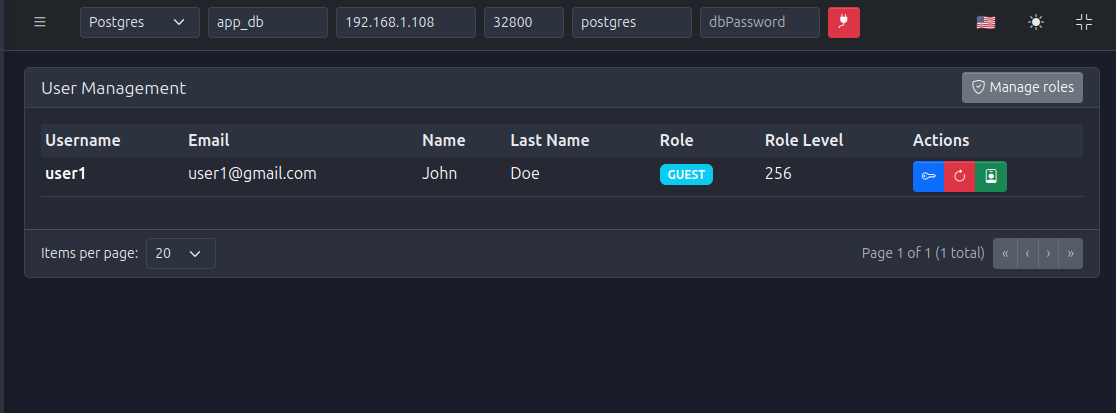
The User Management interface provides a comprehensive view of all user accounts and their configurations.
Dashboard Features
The User Management dashboard displays:
- Username: Unique identifier for each user
- Email: User's email address
- Name: User's first name
- Last Name: User's last name
- Role: User's assigned role (displayed as a colored badge)
- Role Level: Numeric permission level
- Actions: Management buttons for each user (Edit, Reset Password, Delete)
Dashboard Actions
- Manage Roles: Button to access role management (shield icon)
- Create User: Button to create new user accounts
- Edit User: Edit icon to modify user information
- Reset Password: Key icon to reset user passwords
- Delete User: Delete icon to remove user accounts
- Pagination: Navigate through multiple pages when many users exist
Authentication
PyAutomation uses token-based authentication for secure access to the system. Users authenticate once and receive an API token that is used for subsequent requests.
Login Process
To authenticate and obtain an API token:
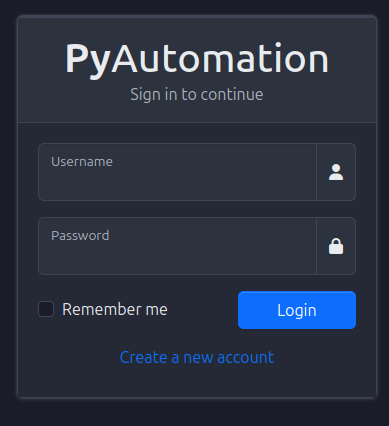
- Navigate to Login Screen: Access the PyAutomation login interface
- Enter Credentials:
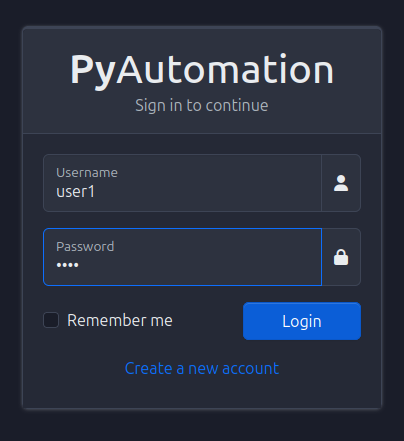
- Enter your username
- Enter your password
- Optionally check "Remember me" to persist your session
-
Submit Login: Click the "Login" button
-
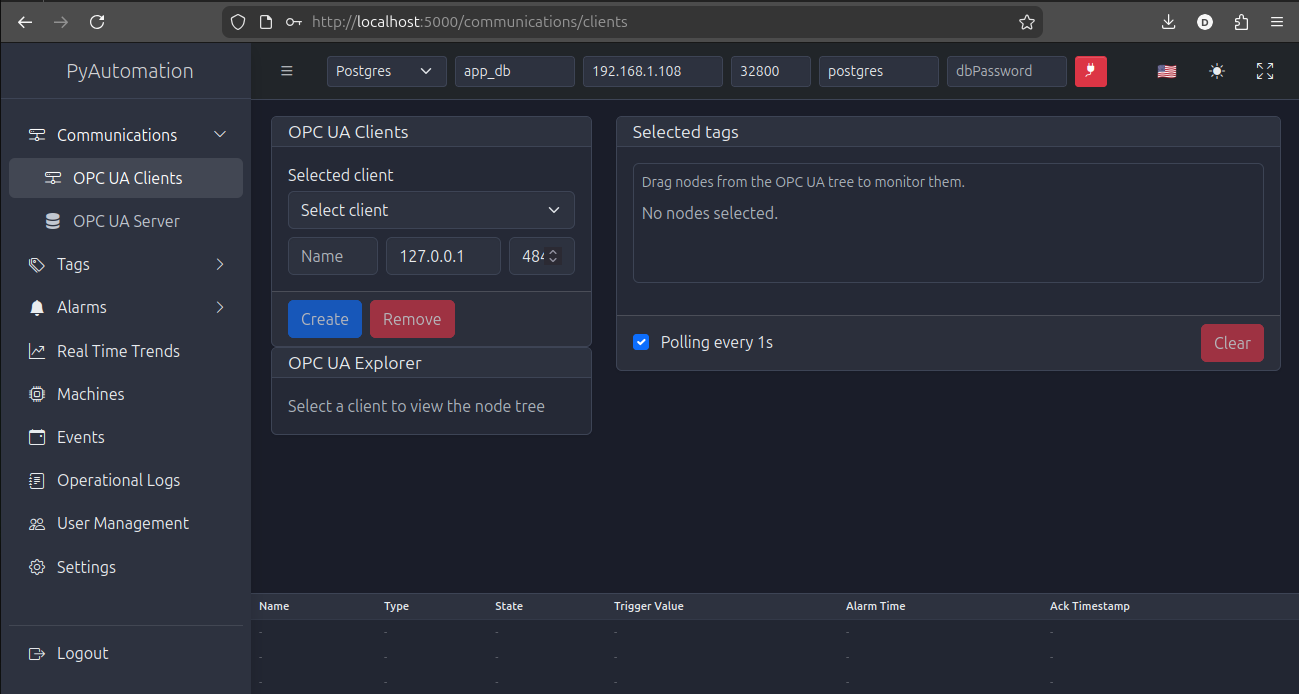
Receive Token: Upon successful authentication, you receive an API token and are redirected to the main dashboard
Login via API
To authenticate programmatically via the API:
Endpoint: POST /api/users/login
Request Body:
Successful Response:
{
  "apiKey": "your_token_here",
  "role": "admin",
  "role_level": 1,
  "datetime": "MM/DD/YYYY, HH:MM:SS",
  "timezone": "America/Lima"
}
Using the Token: Include the token in subsequent API requests using the X-API-KEY header:
Logout
To invalidate your session token:
Via Web Interface: Click logout in the user menu
Via API:
Endpoint: POST /api/users/logout
Include your token in the X-API-KEY header. After logout, the token is invalidated and cannot be used for further requests.
Creating User Accounts
New user accounts can be created through the web interface or via the API.
Creating Users via Web Interface
- Access Signup: Click "Create a new account" on the login screen or navigate to the signup page
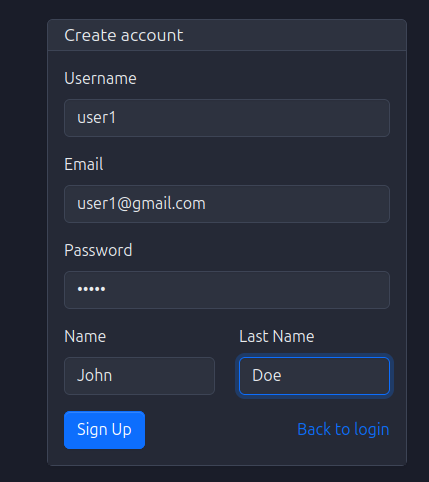
- Fill User Information:
- Username: Unique identifier for the user (required)
- Email: User's email address (required)
- Password: Initial password for the user (required)
- Name: User's first name (optional)
-
Last Name: User's last name (optional)
-
Submit Registration: Click "Sign Up" to create the account
-
Default Role: New users are typically assigned the "guest" role by default, which can be changed later by administrators
Creating Users via API
Endpoint: POST /api/users/signup
Request Body:
{
  "username": "new_user",
  "email": "user@example.com",
  "password": "secure_password",
  "name": "John",
  "lastname": "Doe",
  "role_name": "operator"
}
Authorization: Requires admin or sudo privileges to specify a role_name. Regular users can only create accounts with default guest role.
Managing Users
Viewing Users
The User Management dashboard provides a comprehensive list of all users with their details and current configurations.
Editing Users
To modify an existing user's information:
- Locate the user in the User Management dashboard
- Click the Edit icon (pencil/square icon) in the Actions column
- Modify the desired fields (Email, Name, Last Name, Role)
- Save changes
Note: Username typically cannot be changed after creation. Password changes are handled separately through password management functions.
Deleting Users
To remove a user account:
- Locate the user in the User Management dashboard
- Click the Delete icon (trash icon) in the Actions column
- Confirm the deletion in the confirmation dialog
- The user account will be permanently removed
Important: * Deleting a user removes their account and all associated data * Ensure backups are in place if historical data retention is required * Only users with appropriate permissions can delete other users
Password Management
PyAutomation provides two distinct methods for password management, each designed for specific use cases and with different authorization requirements.
Changing Password
Use the change password functionality when you know your current password and want to update it.
When to Use: * You remember your current password * You want to update your password as a security measure (regular rotation) * An administrator wants to change another user's password (with proper authorization)
Requirements:
* When changing your own password: current_password is required
* When an admin changes another user's password: current_password is not required
Authorization Rules:
* Sudo users: Can change passwords of users with role "admin" only (cannot change their own password)
* Admin users: Can change passwords of users with role_level >= admin (level 1 or higher)
* Other roles: Can only change their own password
Via Web Interface: 1. Access user settings or password change interface 2. Enter current password 3. Enter new password 4. Confirm new password 5. Submit changes
Via API:
Endpoint: POST /api/users/change_password
Request Body:
{
  "target_username": "john_doe",
  "new_password": "newSecurePassword123",
  "current_password": "oldPassword"
}
Headers: Include your API token in X-API-KEY header
Resetting Password
Use the reset password functionality when a password has been forgotten or needs to be reset without knowing the current password.
When to Use: * You have forgotten your password * An administrator needs to reset a user's password without knowing the current one * Password recovery scenarios * Security incidents requiring immediate password reset
Requirements:
* No current_password is required
* Still requires proper authorization based on user roles
Authorization Rules:
* Sudo users: Can reset passwords of users with role "admin" only (cannot reset their own password)
* Admin users: Can reset passwords of users with role_level >= admin (level 1 or higher)
* Other roles: Can only reset their own password (if they have a valid session token)
Via Web Interface: 1. Click the Reset Password icon (key icon) next to the user in User Management 2. Enter new password 3. Confirm password reset
Via API:
Endpoint: POST /api/users/reset_password
Request Body:
Headers: Include your API token in X-API-KEY header
Password Management Scenarios
Scenario 1: User Changing Own Password
Situation: A regular user wants to update their password.
Steps: 1. User authenticates to obtain a token 2. User accesses password change interface 3. Enters current password and new password 4. Submits change request
Result: Password is updated if current password is correct.
Scenario 2: Admin Resetting Operator Password
Situation: An admin needs to reset an operator's forgotten password.
Steps: 1. Admin authenticates to obtain a token 2. Admin navigates to User Management 3. Admin clicks Reset Password icon for the operator 4. Admin sets new password and confirms
Result: Operator's password is reset (admin has permission because operator role_level >= admin).
Scenario 3: User Forgot Password
Situation: A user has forgotten their password and needs to reset it.
Steps: 1. If user has a valid session token, they can reset their own password 2. If user cannot authenticate, they must contact an administrator 3. Administrator resets the password using Reset Password functionality
Note: If the user cannot authenticate at all, they will need to contact an administrator to reset their password, as there is no self-service password recovery mechanism.
Role Management
Roles define the permission levels and access rights for users. The User Management module includes functionality to manage roles, though the default roles are typically sufficient for most use cases.
Managing Roles
Click the Manage Roles button (shield icon) in the User Management dashboard to access role management functionality.
Creating Custom Roles
While PyAutomation includes comprehensive default roles, custom roles can be created if needed for specific organizational requirements.
Considerations: * Custom roles should fit into the existing permission hierarchy * Role levels determine permission relationships * Lower level numbers = higher privileges * Ensure custom roles align with security policies
Third Party Tokens (TPT)
Third Party Tokens (TPT) are JWT (JSON Web Token) tokens designed for third-party system integration. These tokens allow external applications to authenticate with PyAutomation without requiring user login credentials.
Purpose
TPT tokens enable:
- Third-party integrations: Allow external systems to access PyAutomation APIs
- Automated services: Enable service-to-service communication without human intervention
- Long-lived access: Create tokens that don't expire with user sessions
- System integration: Connect PyAutomation with other industrial systems, SCADA systems, or enterprise software
Creating TPT Tokens
Who can create TPT tokens: * Only users with the sudo role can create TPT tokens
How to create a TPT token:
- Authenticate as a sudo user to obtain your API token
- Send a POST request to
/api/users/create_tpt: - Include your sudo user token in the
X-API-KEYheader
Response:
{
  "token": "eyJ0eXAiOiJKV1QiLCJhbGc...",
  "role": "admin",
  "created_on": "2024-01-15 10:30:45",
  "message": "Third Party Token created successfully"
}
Using TPT Tokens
TPT tokens can be used in the X-API-KEY header just like regular user tokens. The token contains:
* Role: The role name embedded in the token
* Created timestamp: When the token was created
Example usage:
Security Considerations
Token Security:
* TPT tokens are signed using AUTOMATION_APP_SECRET_KEY from your environment configuration
* Store TPT tokens securely in third-party systems
* Never commit TPT tokens to version control or expose them in logs
* Use HTTPS when transmitting tokens over networks
Best Practices: * Regularly rotate TPT tokens for enhanced security * Use the minimum required role level for the token (principle of least privilege) * Create separate tokens for different integrations * Revoke and recreate tokens if they are compromised * Monitor token usage for suspicious activity
Token Scope: * Choose the appropriate role level for each integration * Don't use sudo-level tokens unless absolutely necessary * Consider using admin or operator level tokens for most integrations
Security Best Practices
Password Security
- Use Strong Passwords:
- Choose passwords with a mix of uppercase and lowercase letters, numbers, and special characters
- Minimum length of 12-16 characters recommended
-
Avoid dictionary words, personal information, or common patterns
-
Change Passwords Regularly:
- Update passwords periodically as a security measure
- Rotate passwords every 90 days for production systems
-
Change passwords immediately if compromise is suspected
-
Protect the System User Password:
- Use a very strong password for
AUTOMATION_SUPERUSER_PASSWORD - Store the
.envfile securely and never commit it to version control - Limit access to the
.envfile to authorized personnel only
Token Security
- Don't Share Tokens:
- Keep your API tokens secure and don't share them with others
- Each user should use their own token
-
Don't embed tokens in client-side code
-
Logout When Done:
- Always logout when finished to invalidate your session token
-
Use logout functionality for API tokens when integration completes
-
Rotate TPT Tokens:
- Regularly rotate Third Party Tokens
- Revoke old tokens when creating new ones
- Update integrations with new tokens
Access Control
- Role-Based Access:
- Understand your role's permissions and limitations
- Assign users the minimum role level required for their job function
-
Regularly review user roles and permissions
-
Principle of Least Privilege:
- Don't grant sudo or admin roles unless necessary
- Use operator or supervisor roles for most users
-
Use auditor role for users who only need read access
-
Regular Audits:
- Periodically review user accounts and remove inactive users
- Verify that user roles match current job responsibilities
- Audit TPT token usage and remove unused tokens
System Security
- Environment Configuration:
- Use strong values for
AUTOMATION_APP_SECRET_KEY - Change default passwords before production deployment
-
Secure
.envfiles and configuration files -
Network Security:
- Use HTTPS for production deployments
- Restrict network access to PyAutomation services
-
Implement firewall rules to limit access
-
Monitoring and Logging:
- Monitor authentication attempts and failed logins
- Review operational logs regularly
- Set up alerts for suspicious activity
Common Use Cases
Initial System Setup
- Access System User:
- Use the system user credentials (from
AUTOMATION_SUPERUSER_PASSWORD) to log in - Create your first admin user account
-
Log out from system user
-
Create Admin Users:
- Log in with admin credentials
- Create additional admin users as needed
- Configure user roles according to organizational structure
User Onboarding
- Create User Account:
- Admin creates new user account via User Management
- Assign appropriate role based on job function
-
Set initial password or allow user to set password on first login
-
User First Login:
- User logs in with initial credentials
- User changes password (recommended)
- User begins using the system
Password Recovery
- User Forgot Password:
- User contacts administrator
- Administrator resets password using Reset Password function
- Administrator provides new password to user securely
- User changes password after first login
Integration Setup
- Create TPT Token:
- Sudo user creates TPT token with appropriate role level
- Token is provided to integration team
- Integration uses token in API requests
- Token is stored securely in integration system
Troubleshooting
Authentication Issues
Problem: Cannot log in with valid credentials
Solutions: * Verify username and password are correct (check for typos) * Ensure user account exists and is active * Check that user role is properly configured * Verify database connection is working * Check system logs for authentication errors
Problem: Token not working in API requests
Solutions:
* Verify token is included in X-API-KEY header
* Check that token hasn't expired or been invalidated
* Ensure token was obtained from successful login
* Verify API endpoint URL is correct
Password Issues
Problem: Cannot change password
Solutions:
* Verify current password is correct
* Check that you have permission to change the password
* Ensure new password meets requirements
* For system user, password can only be changed via .env file
Problem: Admin cannot reset another user's password
Solutions: * Verify admin has appropriate role level * Check that target user's role level is >= admin's role level * Ensure admin token is valid and included in request
User Management Issues
Problem: Cannot create user with specific role
Solutions: * Verify you have permission to create users with that role * Check that role exists in the system * Ensure role level hierarchy allows the assignment
Problem: Cannot delete user
Solutions: * Verify you have permission to delete users * Check that user is not a system user (system user cannot be deleted) * Ensure user's role level allows deletion by your role
System User Issues
Problem: System user password not working
Solutions:
* Verify AUTOMATION_SUPERUSER_PASSWORD is set correctly in .env file
* Restart PyAutomation to ensure password is synchronized
* Check that .env file is in the correct location
* Verify environment variable is being loaded correctly
Problem: System user password changed but doesn't take effect
Solutions:
* Restart PyAutomation after changing AUTOMATION_SUPERUSER_PASSWORD
* The system user password is reset on every application start
* Password changes made via User Management interface are overwritten on restart
Navigation to Related Modules
User Management integrates with other PyAutomation modules:
- Database: User accounts, roles, and authentication data are stored in the database
- Operational Logs: User actions, logins, and password changes are logged
- Events: Authentication events and user management actions generate system events
- Alarms: Users can be associated with alarm acknowledgments and management
Getting Started
To begin working with User Management:
-
Initial Access:
- Use the system user credentials (from
AUTOMATION_SUPERUSER_PASSWORDin.env) to log in - This provides sudo-level access for initial setup
- Use the system user credentials (from
-
Create Admin Users:
- Create your first admin user account through the User Management interface
- Assign the "admin" role to this user
- Log out from system user and log in with admin credentials
-
Configure User Accounts:
- Create user accounts for all personnel who will use the system
- Assign appropriate roles based on job functions
- Set initial passwords or allow users to set passwords on first login
-
Establish Security Practices:
- Change the system user password from default value
- Implement password policies
- Review and configure role assignments
- Set up monitoring for authentication and user management activities
-
Integrate with Systems:
- If needed, create TPT tokens for third-party integrations
- Configure integration systems with appropriate access tokens
- Monitor token usage and rotate as needed