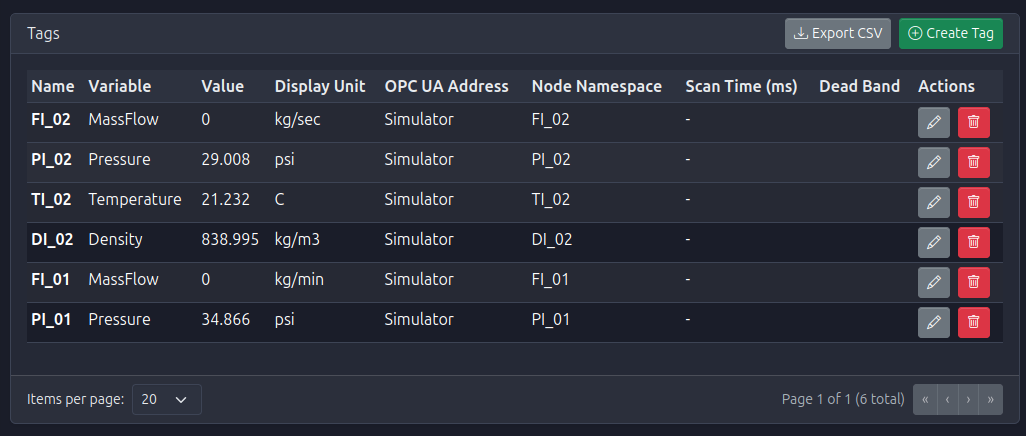
Deleting a Tag
🗑️ Remove Tags from Your System
When a tag is no longer required in the automation system, it can be permanently removed from the configuration.
Deletion Procedure
- Locate the Tag: Navigate to the Tags Dashboard and identify the tag to be removed.
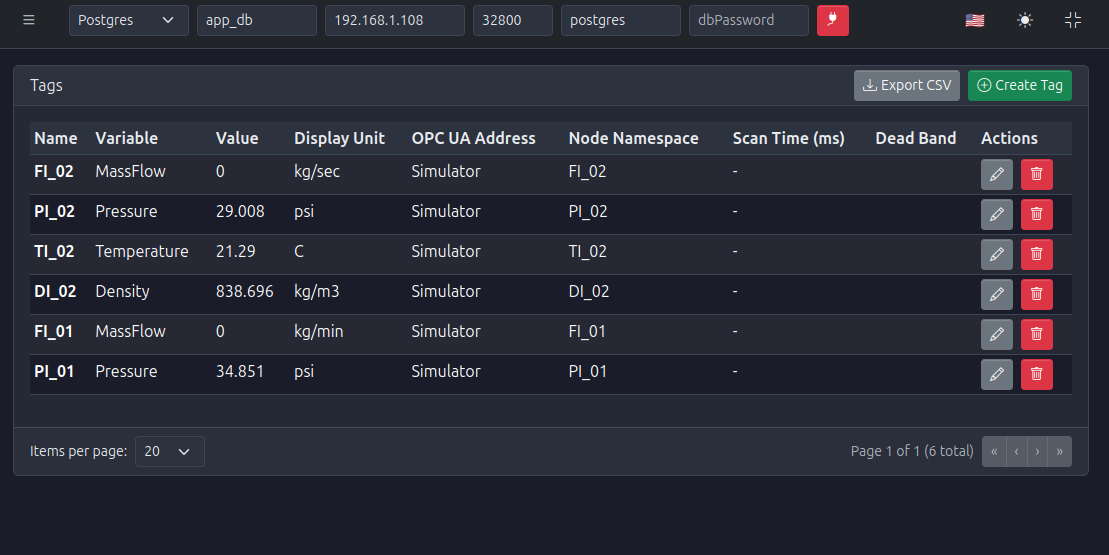
- Initiate Deletion: Click the trash icon (🗑️) located in the Actions column of the tag's row.

- Confirm Action: A confirmation modal will appear asking you to verify the deletion. This step is crucial to prevent accidental data loss.
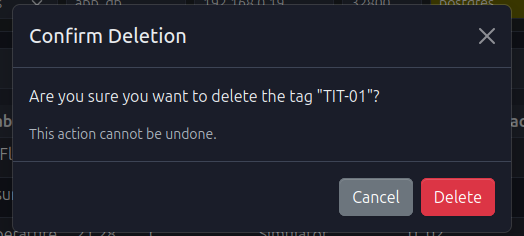
- Finalize: Click Yes or Confirm in the confirmation dialog. The tag will be removed from the system and will no longer appear in the dashboard or be available for data logging and alarms.