Operational Logs Module
📝 Detailed Operational Documentation
The Operational Logs Module provides a comprehensive audit trail of operational activities, system messages, and application-level logs. Unlike Events which track high-level system occurrences, Operational Logs capture detailed operational information, often linked to specific alarms or events for complete traceability.
What are Operational Logs?
Operational Logs in PyAutomation are detailed records of:
- Application Activities: System operations, configuration changes, data processing activities
- Alarm-Related Logs: Comments and notes attached to alarm occurrences
- Event-Related Logs: Additional context and details for system events
- User Operations: Detailed records of user actions and system interactions
- System Messages: Informational, warning, and error messages from the application
Key Features
- Comprehensive Filtering: Filter logs by user, alarm, date range, classification, and message content
- Alarm Linking: View logs associated with specific alarm occurrences
- Event Linking: View logs associated with specific events
- Date Range Presets: Quick selection of common time ranges
- Custom Date Ranges: Define specific time periods for analysis
- Timezone Support: View logs in your preferred timezone
- Pagination: Navigate through large log datasets
- Log Creation: Add new operational logs for documentation
Module Overview
The Operational Logs Module provides a powerful interface to:
- View all operational logs in a chronological table
- Filter logs by multiple criteria including linked alarms and events
- Search for specific logs by message or description content
- Create new operational logs for documentation
- Export log data for reporting and analysis
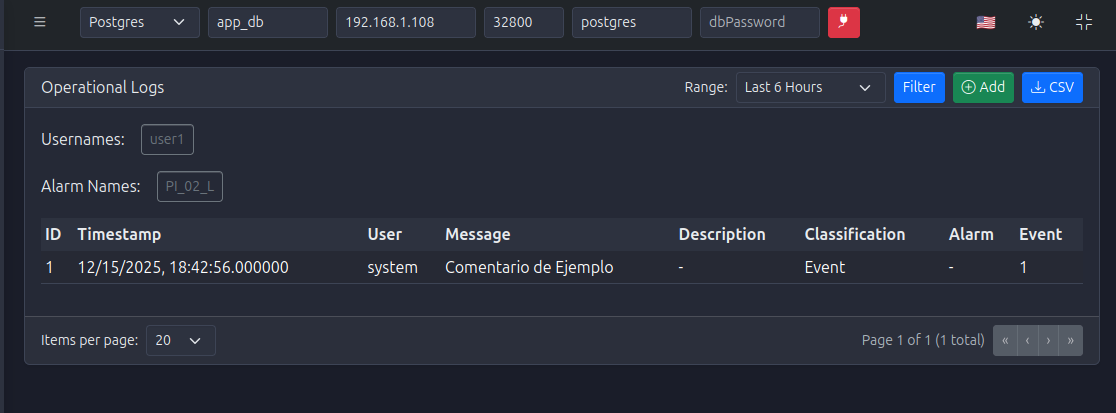
Accessing the Operational Logs Module
- Navigate to Operational Logs from the main menu
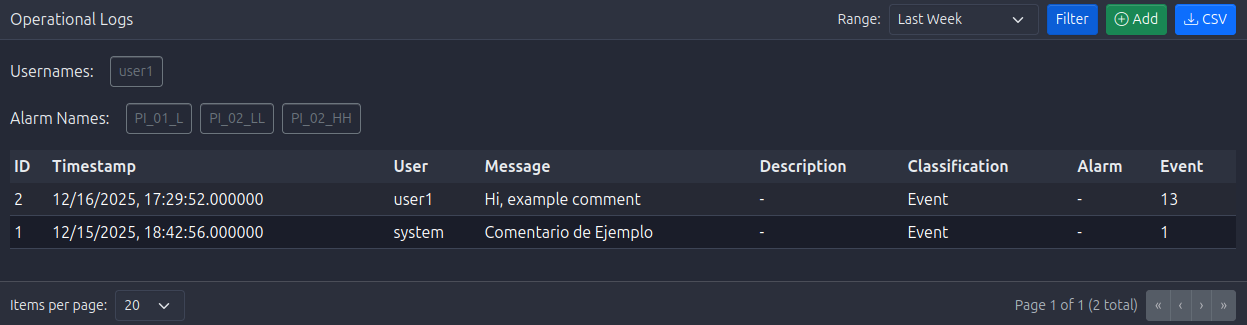
- The dashboard displays logs in a table with filtering controls at the top
- Logs are sorted by timestamp (newest first) by default
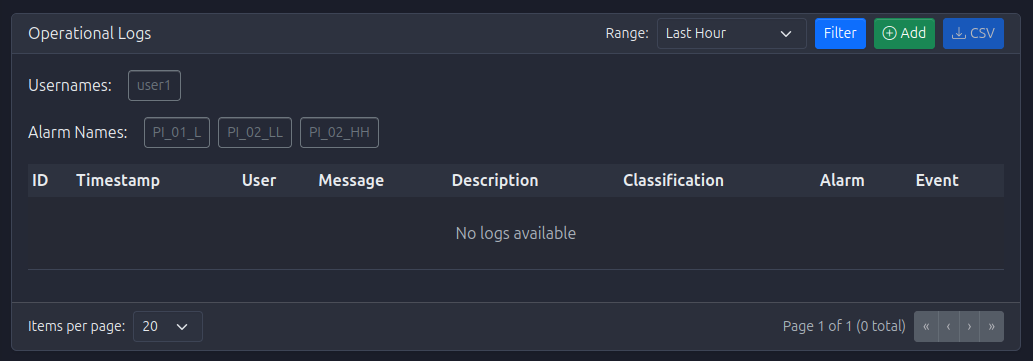
Understanding Log Information
Log Table Columns
- Timestamp: When the log entry was created (formatted according to selected timezone)
- User: The user who created the log (or "System" for automated logs)
- Message: Brief description of the log entry
- Description: Detailed information about the log entry
- Classification: Category of the log (e.g., "Alarm", "Event", "Operational", "System")
- Linked Alarm: Name of the alarm this log is associated with (if applicable)
- Linked Event: Reference to the event this log is associated with (if applicable)
- Actions: Button to view details or create related logs

Filtering Operational Logs
The Operational Logs Module provides comprehensive filtering capabilities:
Date Range Filters
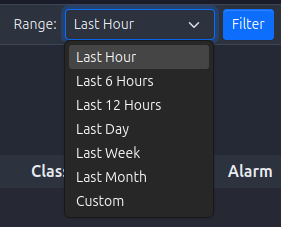
Preset Date Ranges
Quick selection buttons for common time ranges:
- Last Hour: Logs from the past hour
- Last 6 Hours: Logs from the past 6 hours
- Last 12 Hours: Logs from the past 12 hours
- Last Day: Logs from the past 24 hours
- Last Week: Logs from the past 7 days
- Last Month: Logs from the past 30 days
- Custom: Define your own date range
Custom Date Range
To define a custom date range:
- Click the Custom preset button
- Two date/time pickers appear:
- Start Date/Time: Beginning of the range
- End Date/Time: End of the range
- Select dates and times using the pickers
- The filter automatically applies when dates are selected

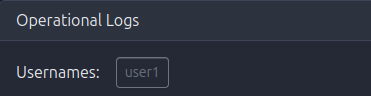
User Filter
Filter logs by specific users:
- Selection: Multi-select dropdown showing all users who have created logs
- Multiple Users: Select multiple users to see logs from any of them
- Clear Selection: Deselect all to show logs from all users
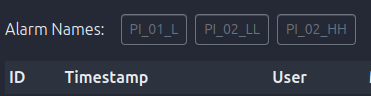
Alarm Filter
Filter logs linked to specific alarms:
- Selection: Multi-select dropdown showing all alarms that have associated logs
- Multiple Alarms: Select multiple alarms to see logs for any of them
- Use Case: Review all operational notes and comments for specific alarm occurrences
- Clear Selection: Deselect all to show logs not filtered by alarm
Applying Filters
- Automatic Application: Filters apply automatically as you change them
- Combined Filters: Multiple filters work together (AND logic)
- Filter Count: May show number of logs matching current filters
Creating Operational Logs
You can create new operational logs to document activities, decisions, or observations:
Creating a New Log
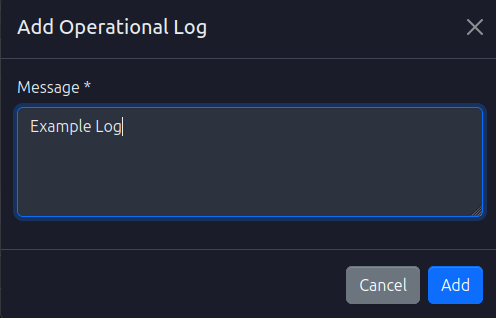
- Click the Create Log or Add Log button (typically at the top of the page)
- A dialog or form opens with the following fields:
- Message (Required): Brief description of the log entry
- Description (Optional): Detailed information
- Classification (Optional): Category of the log
- Linked Alarm (Optional): Associate with a specific alarm
- Linked Event (Optional): Associate with a specific event
- Fill in the required and optional fields
- Click Create or Save to create the log entry
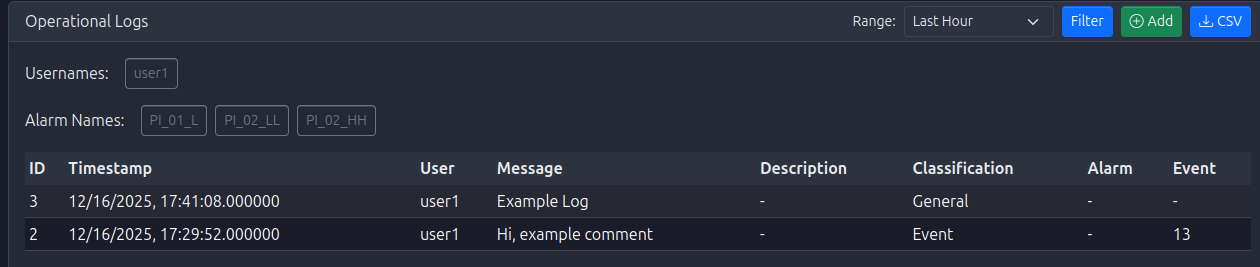
- The new log appears in the table

Linking Logs to Alarms
When creating a log related to an alarm:
- Select the alarm from the Linked Alarm dropdown
- The log will be associated with that alarm occurrence
- This creates a traceable link between the alarm and your operational notes
- Useful for documenting:
- Alarm response actions
- Root cause analysis
- Corrective actions taken
- Follow-up requirements
Linking Logs to Events
When creating a log related to an event:
- Select the event from the Linked Event dropdown (if available)
- The log will be associated with that event
- This provides additional context for system events
- Useful for documenting:
- Event investigation results
- Event resolution steps
- Related operational activities
Viewing Log Details
Log Information
Click on a log row or use the actions button to view:
- Full Timestamp: Precise time of the log entry
- Complete Message: Full log message text
- Complete Description: Full description with all details
- User Information: User who created the log
- Classification Details: Full classification information
- Linked Resources: Associated alarm or event information
Understanding Log Classifications
Alarm Classification
- Purpose: Logs related to alarm occurrences
- Examples: Alarm response notes, root cause analysis, corrective actions
- Linking: Typically linked to specific alarm occurrences
Event Classification
- Purpose: Logs related to system events
- Examples: Event investigation notes, resolution documentation
- Linking: May be linked to specific events
Operational Classification
- Purpose: General operational activities
- Examples: Shift handover notes, maintenance activities, process observations
- Linking: May or may not be linked to alarms/events
System Classification
- Purpose: System-level messages and activities
- Examples: System maintenance, configuration changes, performance notes
- Linking: Typically not linked to alarms/events
Pagination
The Operational Logs Module uses pagination to handle large datasets:
- Items Per Page: Configurable (typically 20, 50, or 100 logs per page)
- Page Navigation: Previous/Next buttons and page numbers
- Total Count: Shows total number of logs matching current filters
- Page Indicator: Displays current page and total pages

Exporting Logs
Export filtered logs for external analysis:
- Export Button: Typically located near the filter controls
- Format: Usually CSV format
- Content: Includes all visible columns and filtered results
- Use Case: Reporting, compliance documentation, external analysis
Best Practices
Log Creation
- Be Descriptive: Write clear, descriptive messages and descriptions
- Link When Appropriate: Link logs to alarms or events when relevant
- Timely Documentation: Create logs promptly after activities occur
- Consistent Classification: Use consistent classifications for similar activities
Log Review
- Regular Reviews: Periodically review logs for patterns and issues
- Alarm-Related Logs: Regularly review logs linked to alarms
- Shift Handovers: Use logs for shift handover documentation
- Incident Analysis: Review logs when investigating incidents
Filtering Strategy
- Start with Date Range: Begin with a date range, then narrow with other filters
- Use Alarm Filter: Use alarm filter to review all notes for specific alarms
- Combine Filters: Use multiple filters together for precise searches
- Save Common Queries: Note frequently used filter combinations
Documentation
- Document Decisions: Use logs to document important decisions
- Record Actions: Log actions taken in response to alarms or events
- Note Observations: Record operational observations and findings
- Maintain Traceability: Link logs to alarms/events for complete traceability
Troubleshooting
No Logs Displayed
If no logs appear:
- Check Filters: Verify filters aren't too restrictive
- Date Range: Ensure date range includes recent logs
- Clear Filters: Try clearing all filters to see all logs
- Check Permissions: Verify you have permission to view logs
Logs Not Updating
If new logs don't appear:
- Refresh Page: Reload the Operational Logs page
- Check Date Range: Ensure date range includes current time
- Verify System: Check that log creation is working
- Review Database: Verify database connection is active
Cannot Create Logs
If you cannot create new logs:
- Check Permissions: Verify you have permission to create logs
- Required Fields: Ensure all required fields are filled
- Review Errors: Check for error messages in the form
- Browser Console: Check browser console for JavaScript errors
Integration with Other Modules
The Operational Logs Module integrates with:
- Alarms Module: Logs can be linked to alarm occurrences
- Events Module: Logs can be linked to system events
- Users Module: Logs are associated with users who create them
- Database Module: Logs are stored in the database for historical access
Difference Between Events and Operational Logs
Understanding when to use Events vs. Operational Logs:
Events
- Automatic: Generated automatically by the system
- System Actions: Track system-level occurrences
- Structured: Follow predefined event types and classifications
- Examples: "Tag created", "Alarm acknowledged", "User logged in"
Operational Logs
- Manual: Created by users for documentation
- Operational Context: Capture operational notes and observations
- Flexible: Free-form messages and descriptions
- Examples: "Investigated alarm, found sensor calibration issue", "Performed maintenance on pump P-101"
Best Practice: Use Events to track what happened, use Operational Logs to document why it happened and what was done about it.
Getting Started
To begin using the Operational Logs Module:
-
Access the Module:
- Navigate to Operational Logs from the main menu
-
Review Existing Logs:
- Use "Last Day" preset to see recent operational activities
- Familiarize yourself with log types and classifications
-
Experiment with Filters:
- Try filtering by alarm to see alarm-related logs
- Understand how filters work together
-
Create Your First Log:
- Practice creating a log entry
- Try linking it to an alarm or event
-
Establish Documentation Process:
- Set up procedures for creating logs
- Define when logs should be created
- Establish classification standards
-
Regular Review:
- Set up a schedule for reviewing logs
- Focus on alarm-related logs for incident analysis
- Use logs for shift handovers and documentation