System Settings Module
⚙️ Centralized Configuration
The System Settings Module provides centralized configuration management for PyAutomation, allowing administrators to control application behavior, logging parameters, and system-wide configurations. This module also enables backup and restoration of system configuration through export and import functionality.
Overview
The Settings module is divided into two main sections:
- Application Settings: Configuration parameters that control application behavior, including logging settings
- System Settings: Configuration management tools for exporting and importing system configuration
Additionally, user interface preferences (language, theme, fullscreen) are accessible from the top navigation bar and are saved per-user in the browser.
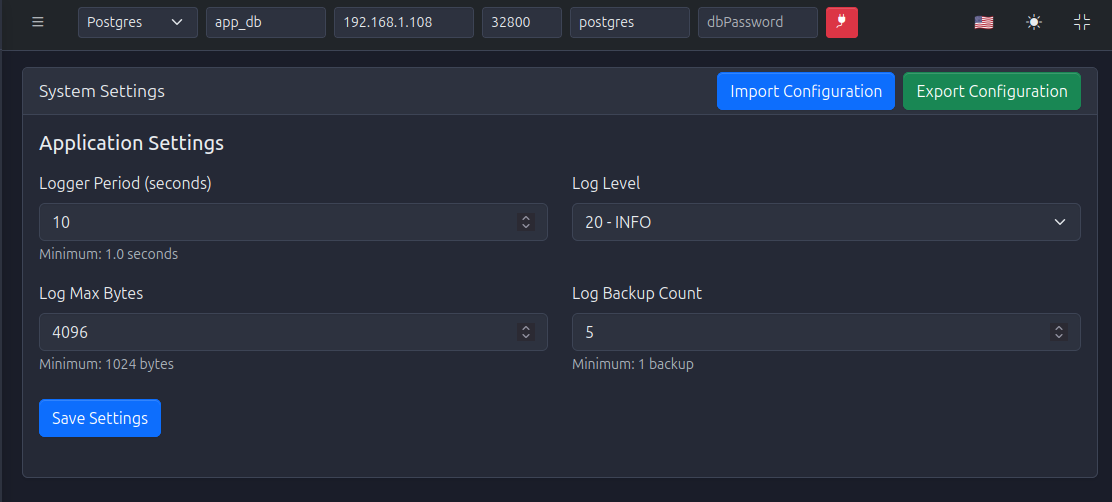
Application Settings
The Application Settings section allows you to configure logging behavior and application parameters that affect how PyAutomation records and manages operational data.
Logger Period (seconds)
Controls the interval at which log records are flushed to disk or rotated.
- Default Value: 10.0 seconds
- Minimum Value: 1.0 seconds
- Type: Float (decimal number)
- Usage: Lower values provide more frequent log updates but may impact performance; higher values reduce I/O operations but may delay log availability
Recommendations: * Development/Testing: 5-10 seconds (balance between responsiveness and performance) * Production: 10-30 seconds (optimize for performance and reduce I/O overhead) * High-Volume Systems: 30-60 seconds (minimize disk I/O for systems with heavy logging)
Log Max Bytes
Defines the maximum size of a single log file before it is rotated (archived and a new file created).
- Default Value: Varies by system
- Minimum Value: 1024 bytes (1 KB)
- Type: Integer
- Unit: Bytes
- Usage: When a log file reaches this size, it is rotated and archived
Common Values: * Small Systems: 1-5 MB (1,048,576 - 5,242,880 bytes) * Medium Systems: 5-10 MB (5,242,880 - 10,485,760 bytes) * Large Systems: 10-50 MB (10,485,760 - 52,428,800 bytes)
Note: Both Log Max Bytes and Log Backup Count must be updated together. You cannot change one without the other.
Log Backup Count
Specifies how many rotated log files to keep before deleting the oldest ones.
- Default Value: 5
- Minimum Value: 1 backup
- Type: Integer
- Usage: Determines historical log retention; older logs beyond this count are automatically deleted
Recommendations: * Development: 3-5 backups (sufficient for recent history) * Production: 5-10 backups (balance between history and disk space) * Compliance Requirements: 10-30 backups (if regulatory requirements mandate longer retention)
Important: Both Log Max Bytes and Log Backup Count must be updated together. The system requires both values to be provided when updating log rotation settings.
Log Level
Controls the verbosity of logging output. Only messages at or above the selected level are recorded.
-
Available Levels:
- 0 - NOTSET: All messages (including undefined levels)
- 10 - DEBUG: Detailed information for diagnosing problems
- 20 - INFO: General informational messages about system operation
- 30 - WARNING: Warning messages for potentially problematic situations
- 40 - ERROR: Error messages for failures that don't stop the system
- 50 - CRITICAL: Critical errors that may cause the system to stop
-
Default Value: 20 (INFO)
- Type: Integer (must be one of the standard values: 0, 10, 20, 30, 40, 50)
Recommendations by Environment: * Development: DEBUG (10) - Maximum detail for troubleshooting * Testing/Staging: INFO (20) - Balanced detail for validation * Production: INFO (20) or WARNING (30) - Reduced verbosity while maintaining operational visibility * High-Performance Production: WARNING (30) or ERROR (40) - Minimal logging for maximum performance
Impact: Lower log levels (DEBUG, INFO) generate more log entries and require more disk space. Higher log levels (WARNING, ERROR, CRITICAL) reduce log volume but may miss important operational information.
Saving Application Settings
After modifying any Application Settings:
- Review all changes to ensure they meet your requirements
- Click the Save Settings button (blue button at the bottom of the Application Settings section)
- Wait for the confirmation message indicating settings were saved successfully
- Settings take effect immediately after saving
Note: Changes to logger settings may require a brief moment to apply. The system will continue operating with previous settings until new settings are fully applied.
System Settings
The System Settings section provides tools for managing complete system configuration through export and import functionality.
Export Configuration
Export Configuration creates a complete backup of your PyAutomation system configuration in JSON format. This includes all configuration data but excludes historical operational data.
What is Exported?
The export includes all configuration tables:
- Manufacturer: Device manufacturers
- Segment: Network/plant segments
- Variables: Physical variables (pressure, temperature, flow, etc.)
- Units: Measurement units
- DataTypes: Data types
- Tags: Configured process tags with all their settings
- AlarmTypes: Alarm type definitions
- AlarmStates: Alarm state definitions
- Alarms: Alarm configurations
- Roles: User roles and permissions
- Users: User accounts (passwords are not exported in plain text; must be reset after import)
- OPCUA: OPC UA client configurations
- AccessType: OPC UA access type definitions
- OPCUAServer: OPC UA server configurations
- Machines: State machine definitions
- TagsMachines: Relationships between tags and machines
What is NOT Exported?
Historical data is explicitly excluded from exports:
- TagValue: Historical tag values
- Events: Historical events
- Logs: Operational logs
- AlarmSummary: Historical alarm summaries
Historical data remains in the database and is not affected by import operations.
Exporting via Web Interface
- Navigate to the Settings module from the main menu
- In the System Settings section, click the Export Configuration button (green button)
- The system will generate a JSON file and trigger a download
- Save the file with an appropriate name (e.g.,
pyautomation_config_20240115.json)
Exporting via API
Endpoint: GET /api/settings/export_config
Authentication: Requires API token in X-API-KEY header
Example with cURL:
curl -X GET \
  http://localhost:8050/api/settings/export_config \
  -H "X-API-KEY: your_token_here" \
  -o configuration_export.json
Example with Python:
import requests

url = "http://localhost:8050/api/settings/export_config"
headers = {"X-API-KEY": "your_token_here"}

response = requests.get(url, headers=headers)

if response.status_code == 200:
    with open("configuration_export.json", "wb") as f:
        f.write(response.content)
    print("Configuration exported successfully")
else:
    print(f"Error: {response.json()}")
Response:
* Success (200): JSON file download with filename configuration_export.json
* Error (400): Database not connected or export failed
* Error (401): Token missing or invalid
Export File Format
The exported JSON file has the following structure:
{
  "version": "1.0",
  "exported_at": "2024-01-15T10:30:00+00:00",
  "data": {
    "Manufacturer": [...],
    "Segment": [...],
    "Variables": [...],
    "Units": [...],
    "DataTypes": [...],
    "Tags": [...],
    "AlarmTypes": [...],
    "AlarmStates": [...],
    "Alarms": [...],
    "Roles": [...],
    "Users": [...],
    "OPCUA": [...],
    "AccessType": [...],
    "OPCUAServer": [...],
    "Machines": [...],
    "TagsMachines": [...]
  }
}
Import Configuration
Import Configuration allows you to restore system configuration from a previously exported JSON file.
Important Considerations
Critical Warning
- Import does NOT delete existing data; it only creates new records if they don't already exist
- Duplicate records (based on unique names/identifiers) are skipped during import
- Historical data (TagValue, Events, Logs, AlarmSummary) is NOT affected by import
- User passwords from imported users must be reset after import for security reasons
Import Order
Import is performed in a specific order to respect dependencies between tables:
- Variables
- Units (depends on Variables)
- DataTypes
- Manufacturer
- Segment (depends on Manufacturer)
- Tags (depends on Units, DataTypes, Segment)
- AlarmTypes
- AlarmStates
- Alarms (depends on Tags, AlarmTypes, AlarmStates)
- Roles
- Users (depends on Roles)
- OPCUA
- AccessType
- OPCUAServer (depends on AccessType)
- Machines
- TagsMachines (depends on Tags and Machines)
Importing via Web Interface
- Navigate to the Settings module from the main menu
- In the System Settings section, click the Import Configuration button (blue button)
- Select the JSON configuration file to import
- Click Open or Import to begin the import process
- Review the import summary showing what was imported, skipped, or had errors
- Reset user passwords for imported users as needed
Importing via API
Endpoint: POST /api/settings/import_config
Authentication: Requires API token in X-API-KEY header
Parameters: * file (required): JSON configuration file to import
Example with cURL:
curl -X POST \
  http://localhost:8050/api/settings/import_config \
  -H "X-API-KEY: your_token_here" \
  -F "file=@configuration_export.json"
Example with Python:
import requests

url = "http://localhost:8050/api/settings/import_config"
headers = {"X-API-KEY": "your_token_here"}

with open("configuration_export.json", "rb") as f:
    files = {"file": ("configuration_export.json", f, "application/json")}
    response = requests.post(url, headers=headers, files=files)

if response.status_code == 200:
    result = response.json()
    print(f"Import successful: {result['message']}")
    print(f"Summary: {result['summary']}")
else:
    print(f"Error: {response.json()}")
Response:
Success (200):
{
  "message": "Configuration imported: 150 records imported, 10 skipped, 0 errors",
  "summary": {
    "imported": 150,
    "skipped": 10,
    "errors": 0
  },
  "results": {
    "imported": {
      "Variables": 5,
      "Units": 12,
      "Tags": 50,
      "Alarms": 20,
      ...
    },
    "skipped": {
      "Users": 2,
      "Roles": 1,
      ...
    },
    "errors": {}
  }
}
Error (400):
or
{
  "message": "Invalid JSON file: Expecting value: line 1 column 1 (char 0)",
  "details": {
    "imported": {...},
    "skipped": {...},
    "errors": {...}
  }
}
Error (401):
User Interface Settings
User interface preferences (language, theme, fullscreen) are accessible from the top navigation bar and are saved per-user in the browser's local storage.
Language Selection
PyAutomation supports multiple languages for the user interface.
Available Languages: * English (en): Default language * Español (es): Spanish language
How to Change Language: 1. Locate the language selector icon (flag icon) in the top navigation bar 2. Click the icon to open the language dropdown menu 3. Select your preferred language 4. The interface will update immediately
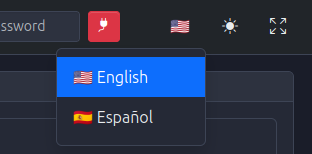
Note: Language preference is stored in your browser's local storage and persists across sessions. Each user's language preference is independent.
Theme Selection
PyAutomation supports light and dark themes for the user interface.
Available Themes: * Light Theme: Bright interface with light backgrounds * Dark Theme: Dark interface with dark backgrounds (default)
How to Change Theme: 1. Locate the theme toggle icon (sun/moon icon) in the top navigation bar 2. Click the icon to toggle between light and dark themes 3. The interface will update immediately
Note: Theme preference is stored in your browser's local storage and persists across sessions. The theme applies to the entire interface immediately upon selection.
Fullscreen Mode
The fullscreen mode expands the PyAutomation interface to use the entire screen, hiding browser chrome and maximizing workspace.
How to Enter Fullscreen:
1. Locate the fullscreen icon (four arrows pointing outward) in the top navigation bar
2. Click the icon to enter fullscreen mode
3. Press Esc key or click the fullscreen icon again to exit fullscreen mode
Use Cases: * Operator workstations where maximum screen real estate is needed * Large displays and control room environments * Presentations or demonstrations * Distraction-free operation
Use Cases
Backup and Restoration
Scenario: Creating regular backups of system configuration
-
Export Configuration:
-
Restore from Backup:
Best Practice: Schedule regular automated exports using cron jobs or task schedulers to maintain recent backups.
Migration Between Systems
Scenario: Moving configuration from one PyAutomation instance to another
- Export configuration from the source system
- Import into the destination system
- Verify that all records imported correctly
- Reset user passwords for imported users
- Verify database connectivity and OPC UA client configurations
Important: After migration, verify all configurations, especially: * OPC UA client connection settings (IP addresses, ports) * Database connection parameters * User accounts and passwords * Tag configurations and OPC UA node mappings
Development and Testing
Scenario: Creating a test environment with production-like configuration
- Export configuration from production system
- Import into development/testing environment
- Perform testing without affecting production historical data
- Restore original configuration if needed after testing
Advantage: Test environment has realistic configuration without production data, allowing safe experimentation.
Configuration Versioning
Scenario: Maintaining a history of configuration changes
- Export configuration before making significant changes
- Tag exports with version numbers or dates
- Store exports in version control or configuration management system
- Use exports to rollback if changes cause issues
What You Can Do
✅ You CAN: * Configure logging parameters (period, level, rotation settings) * Export complete system configuration (all configuration tables) * Import configuration from previously exported files * Change user interface language (English/Español) * Toggle between light and dark themes * Enter and exit fullscreen mode * Update settings individually or together * Import configuration while preserving historical data
What You Cannot Do
❌ You CANNOT: * Export historical data (TagValue, Events, Logs, AlarmSummary) - these remain in the database * Delete existing records through import - import only adds new records * Import configuration while preserving user passwords - passwords must be reset after import * Change settings that require system restart (most settings take effect immediately) * Import partial configurations - import processes all configuration tables * Override duplicate records during import - duplicates are skipped
Best Practices
Logger Configuration
- Match Log Level to Environment:
- Use DEBUG for development and troubleshooting
- Use INFO for normal production operation
-
Use WARNING or ERROR for high-performance production systems
-
Balance Log File Size and Retention:
- Smaller files (1-5 MB) with more backups (10-20) provide better granularity
-
Larger files (10-50 MB) with fewer backups (3-5) reduce management overhead
-
Monitor Disk Space:
- Calculate disk space:
Log Max Bytes × Log Backup Count × Number of Log Types - Ensure sufficient disk space for log retention
-
Implement log archival for long-term retention if needed
-
Adjust Logger Period Based on Load:
- Increase period for high-volume systems to reduce I/O
- Decrease period for critical systems requiring immediate log availability
Configuration Management
- Regular Backups:
- Export configuration before major changes
- Maintain versioned archive of configuration exports
-
Schedule automated exports for critical systems
-
Test Imports:
- Always test imports in development environment first
- Verify import summaries and check for errors
-
Validate that all dependencies are present
-
Documentation:
- Document configuration changes and rationale
- Tag exports with descriptions of changes
-
Maintain configuration change log
-
Security:
- Reset all user passwords after importing users
- Verify OPC UA connection settings after import
- Review role assignments and permissions
-
Secure exported configuration files (they contain user account information)
-
Migration Planning:
- Plan migrations during maintenance windows
- Verify source and destination system compatibility
- Prepare rollback procedures
- Test in non-production environment first
Troubleshooting
Settings Not Saving
Problem: Settings changes are not persisting
Solutions: * Verify you have appropriate permissions (admin or sudo role) * Check that all required fields have valid values * Ensure minimum values are met (logger_period >= 1.0, log_max_bytes >= 1024, etc.) * Verify database connection is active * Check browser console for error messages
Export Fails
Problem: Export configuration operation fails
Solutions: * Verify database connection is active (exports require database access) * Check that you have appropriate permissions * Ensure sufficient disk space for export file * Review system logs for detailed error messages * Try exporting via API to get more detailed error information
Import Fails
Problem: Import configuration operation fails or shows errors
Solutions: * Verify the JSON file is valid and not corrupted * Check that the file was exported from a compatible PyAutomation version * Review import summary for specific error messages * Ensure all required dependencies exist (e.g., variables before units, roles before users) * Verify database connection is active * Check system logs for detailed error information
Records Not Importing
Problem: Some records appear in "skipped" instead of "imported"
Solutions: * This is normal behavior - duplicate records (same name/identifier) are skipped * Verify the records don't already exist in the system * Check that unique identifiers (names) match exactly * Review import summary to see which specific records were skipped
Imported Users Cannot Login
Problem: Users imported from configuration cannot log in
Solutions: * This is expected behavior - passwords are not exported in plain text for security * Reset passwords for imported users using the password reset functionality * Use the User Management module to reset passwords * Inform users that they need to set new passwords
Log Settings Not Taking Effect
Problem: Changes to logger settings don't seem to be applied
Solutions: * Verify settings were saved successfully (check for confirmation message) * Wait a few moments for settings to propagate (some changes take a moment to apply) * Check current settings to verify they match what you configured * Review system logs to confirm new settings are being used * Restart PyAutomation if settings still don't apply (rarely necessary)
Navigation to Related Modules
Settings integrates with other PyAutomation modules:
- Database: Configuration data and settings are stored in the database
- Tags: Tag configurations are included in export/import
- Alarms: Alarm configurations are included in export/import
- Users: User accounts are included in export/import (passwords must be reset)
- Communications: OPC UA configurations are included in export/import
- Operational Logs: Log settings affect how operational logs are recorded
Getting Started
To begin working with Settings:
-
Access Settings Module:
- Navigate to Settings from the main menu
- Review current Application Settings
-
Configure Logging:
- Adjust logger settings based on your environment (development vs. production)
- Set appropriate log level for your use case
- Configure log rotation to manage disk space
-
Create Initial Backup:
- Export configuration immediately after initial setup
- Store backup in a secure location
- Document the backup with date and description
-
Set User Preferences:
- Select preferred language from the navigation bar
- Choose light or dark theme
- Preferences are saved automatically
-
Establish Backup Schedule:
- Plan regular configuration exports
- Consider automating exports for production systems
- Maintain versioned archive of configuration exports